Curated Items
Community-created cosmetic items can be submitted for inclusion in the game through the curated workshop.
Accepted items are sold in the item store. The default revenue share is 25%, but for items associated with maps (e.g. the Elver Map Bundle) the revenue share is 50%.
Requirements
Some additional preparation is needed compared with regular gameplay items:
Following the style rules
Organizing your Unity project
Exporting a Unity package
Specifying Mythical effect placement
Style Rules
There are several rules for cosmetic items to help promote consistency with the Unturned’s art style, seeing as they will be integrated directly into the game:
Please avoid super high-contrast colors. They can be painful to look at, especially when used in harsh lighting. Most of the official content has medium-intensity colors.
Following this, please don’t go darker than #1e1e1e or brighter than #f0f0f0. Both extremes of brightness won’t play nicely with lighting.
Flat forest/snow/desert/urban camouflages are reserved for in-game items like the ghillie suit. You are, however, allowed to incorporate patterned camouflage into your cosmetics.
Corners of models should not be beveled. Most objects should follow the ninety-degree edges. There isn’t a limit on vertex/triangle/polygon count because anything matching the art style will naturally have a reasonable number.
Edges of clothing should have a slightly darker border one pixel wide. If you wear one of the official in-game items, you can see, for example, that the cuffs and waist of shirts have these.
Only use copyrighted content, trademarks, and intellectual property that belong to you.
More rules may be added in the future if necessary.
Unity Project Organization
Organizing your project into an export folder for your asset-bundled files (e.g. Item.prefab) and a sources folder for the imported files is greatly appreciated.
This makes it much easier to ensure only the necessary assets are included in the game. As an example, if a source .blend file were in the asset-bundled folder any unused/intermidiary meshes would accidentally get exported as well.
All of the base game’s exported assets are in the Assets/CoreMasterBundle folder, and all of the source files are in the Assets/Game/Sources folder.
Cosmetic organization:
Map-related cosmetics are in per-map folders and prefixed with the map name. For example, Arid’s Arrowhead item export files are located in
Assets/CoreMasterBundle/Items/Arid/Arid_Arrowheadand the source files are inAssets/Game/Sources/Items/Arid.Sets of items are in a per-outfit folder and prefixed with the outfit name. For example, the Cultist bundle’s mask item export files are located in
Assets/CoreMasterBundle/Items/Outfits/Cultist/Cultist_Maskand the source files are inAssets/Game/Sources/Items/Outfits/Cultist.Miscellaneous items are in the folder matching their type. For example, the Turtle Backpack exported files are located in
Assets/CoreMasterBundle/Items/Backpacks/Turtle_Backpackand the source files are inAssets/Game/Sources/Items/Backpacks/Turtle_Backpack.
Exporting Unity Package
Since the assets for accepted cosmetics are included in the core asset bundle, a .unitypackage file is needed along with the regular .dat files. To export the package:
Select the folders containing your
Item.prefabfiles. For example, if submitting the vanilla fedora you would select theAssets/CoreMasterBundle/Items/Hats/Fedorafolder.Right-click in the Project window
Click Export Package…
Ensure Include dependencies is checked to include the files that aren’t directly placed in the asset bundles (meshes, materials, textures, etc).
Note
The Unity package is in addition to the regular asset .dat and English.dat files. Including the .dat files from your setup is useful for keeping the accepted version consistent. While not strictly necessary, including a name and description in the English text file is appreciated and will probably be used.
Mythical Effect Placement
If the item will have mythical effects the Item.prefab needs an “Effect” child transform. The orientation is rather unfortunate: +Z is the mythical’s up direction and +Y is the mythical’s forward direction.
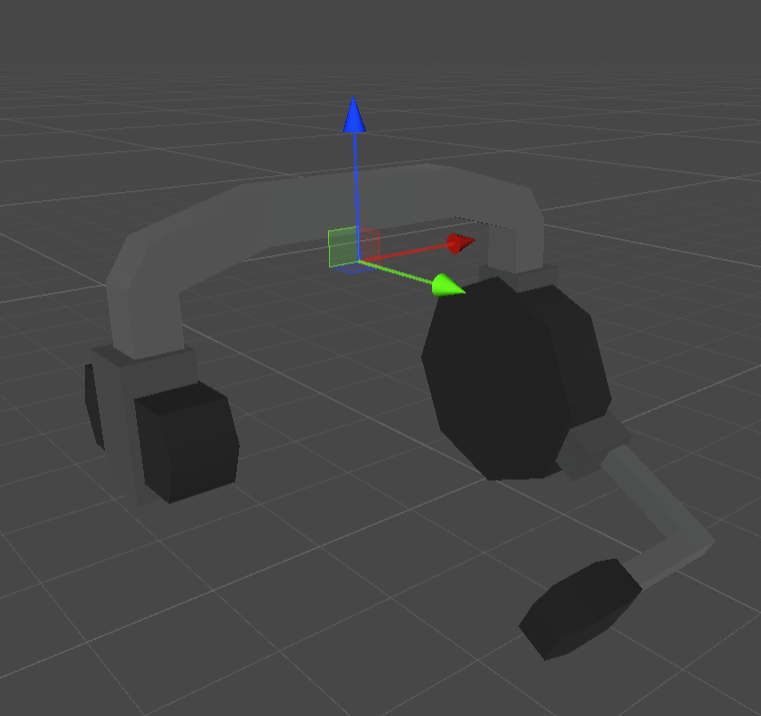
Example “Effect” transform positioning and orientation.